Table of Contents [expand]
Last updated August 20, 2026
This feature is available in Heroku Enterprise
Enterprise Teams were previously known as Heroku Orgs or Organizations. The name change doesn’t change existing features or settings. We’re updating all CLI commands to replace “Org”. That work is ongoing, so some Org commands remain.
Enterprise Teams helps you to manage access to a shared group of applications, check resources used by different apps within the Enterprise Team, and more. The development experience remains largely the same, but you now have granular access control and can more efficiently manage your development process.
When your Enterprise Team is provisioned, Heroku sends you an email with the enterprise team name, resource limits, and a link to your dashboard. This guide outlines how to complete the setup of your Enterprise Team.
Apps
Enterprise Team apps are listed under the Apps tab. The right column links to their stack. Pipelines – marked by an icon of multiple apps – don’t have a stack displayed. Applications become part of an Enterprise Team when they’re transferred into the Enterprise Team or created as part of the Enterprise Team.
Use the filtering option to search for specific apps and pipelines.
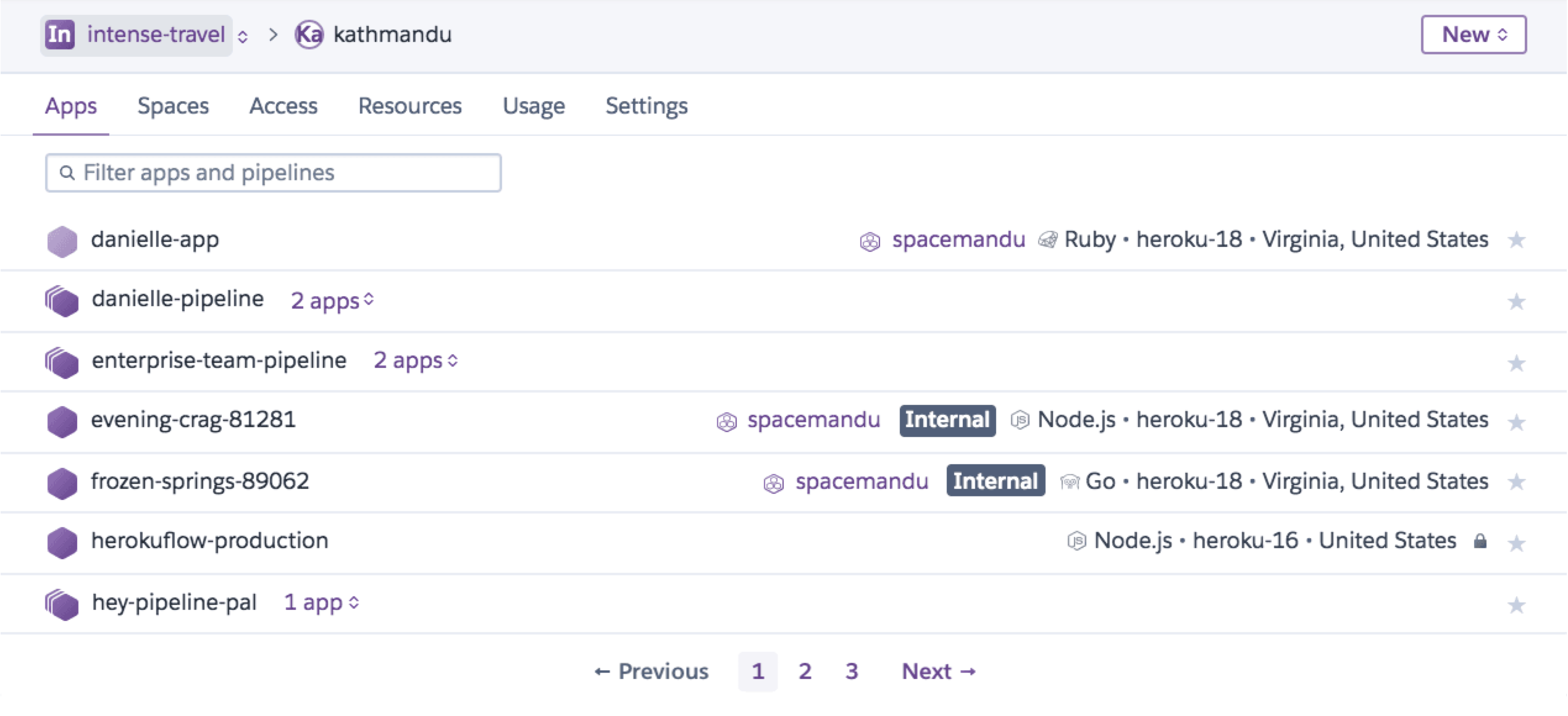
You can find the same pagination and search features for the apps list in your Heroku Teams, and personal accounts as well.
For our Enterprise Accounts users, the pagination and filtering features are also available for Enterprise Teams and users management under the Teams and Access tabs of their Enterprise Account.
Creating Apps
Enterprise Team users with “admin” and “member” permissions can create an app directly within the Enterprise Team. To create an app, select Enterprise Team from the main menu, and then select the new button.
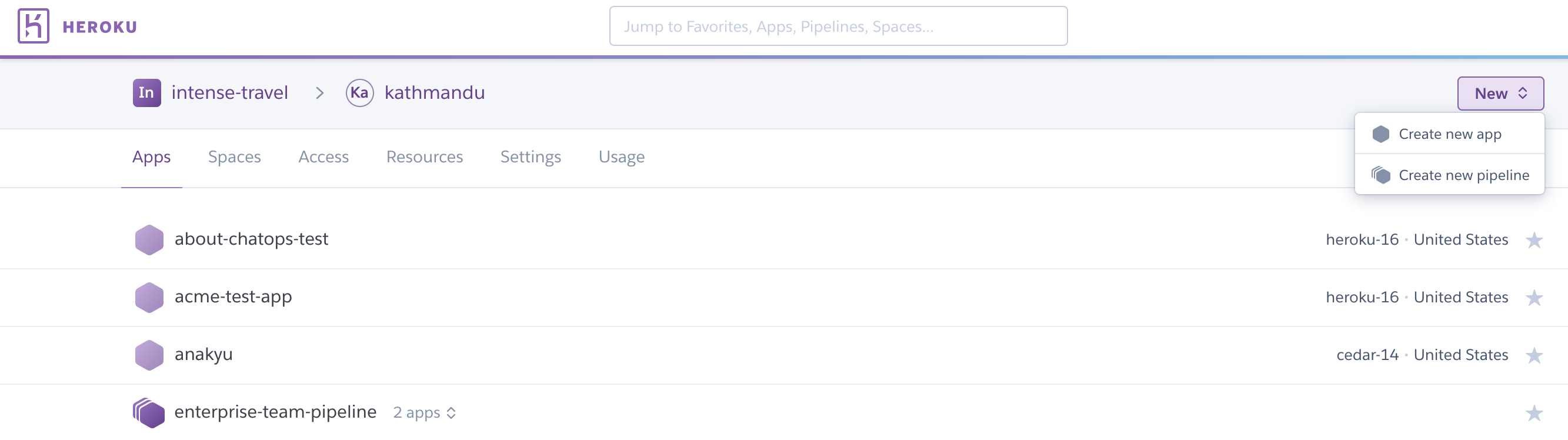
To create an app from the CLI, specify the Enterprise Team name with the --team flag on the heroku create command. A random app name is generated if you don’t provide an app name. Heroku’s naming style is <adjective>-<noun>-<4 digit number>, with the adjectives and nouns drawn from a list of brand-friendly words. The following example creates a randomly named app in the organization acme-widgets.
$ heroku create --team acme-widgets
Creating gentle-garden-8862 in organization acme-widgets... done
https://gentle-garden-8862.herokuapp.com/ | https://git.heroku.com/gentle-garden-8862.git
To specify the app name run the following:
$ heroku create --team acme-widgets --app apple
Creating apple... done
https://apple.herokuapp.com/ | https://git.heroku.com/apple.git
Transferring Apps
Existing development teams often have several apps in development under a shared account or personal developer accounts. App owners must transfer their apps to the Enterprise Team before it can be managed as part of the Enterprise Team. Billing transfers with the app.
To transfer an application using the Dashboard, the current app owner must go to the Settings tab of the application, scroll down to the “Transfer Ownership” section, and then select the Enterprise Team.
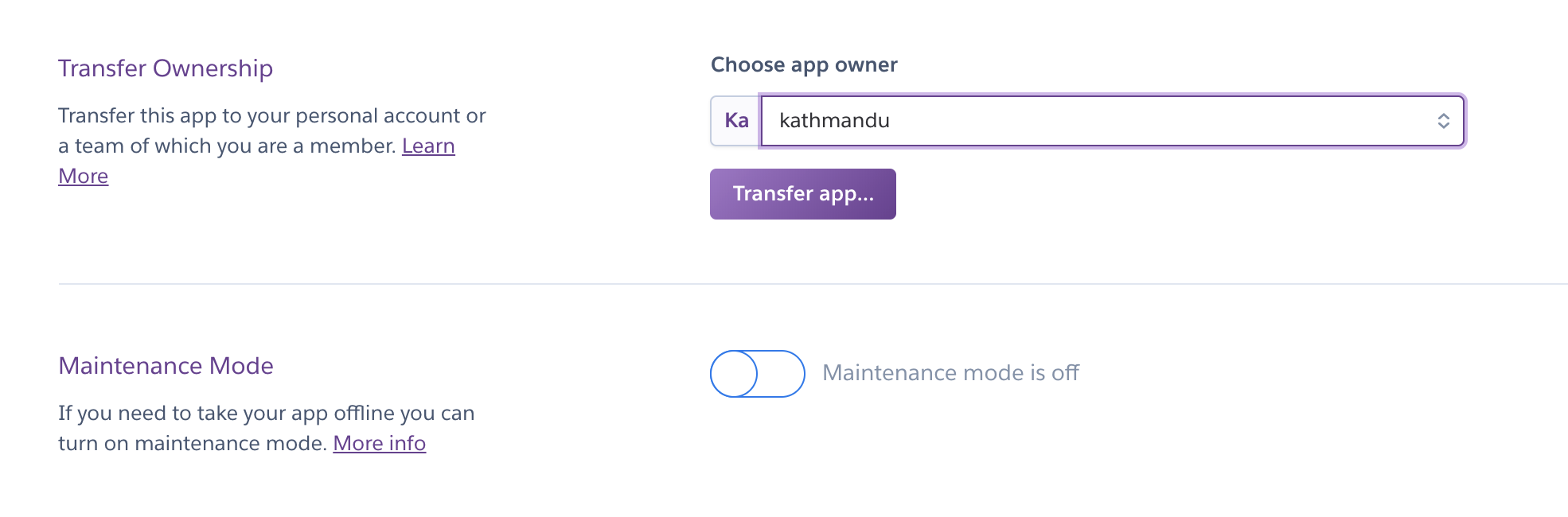
You can also use the CLI to transfer apps into an Enterprise Team:
$ heroku apps:transfer acme-widgets -a deep-spring-4274
Transferring deep-spring-4274 to acme-widgets... done
Bulk Transfer Apps
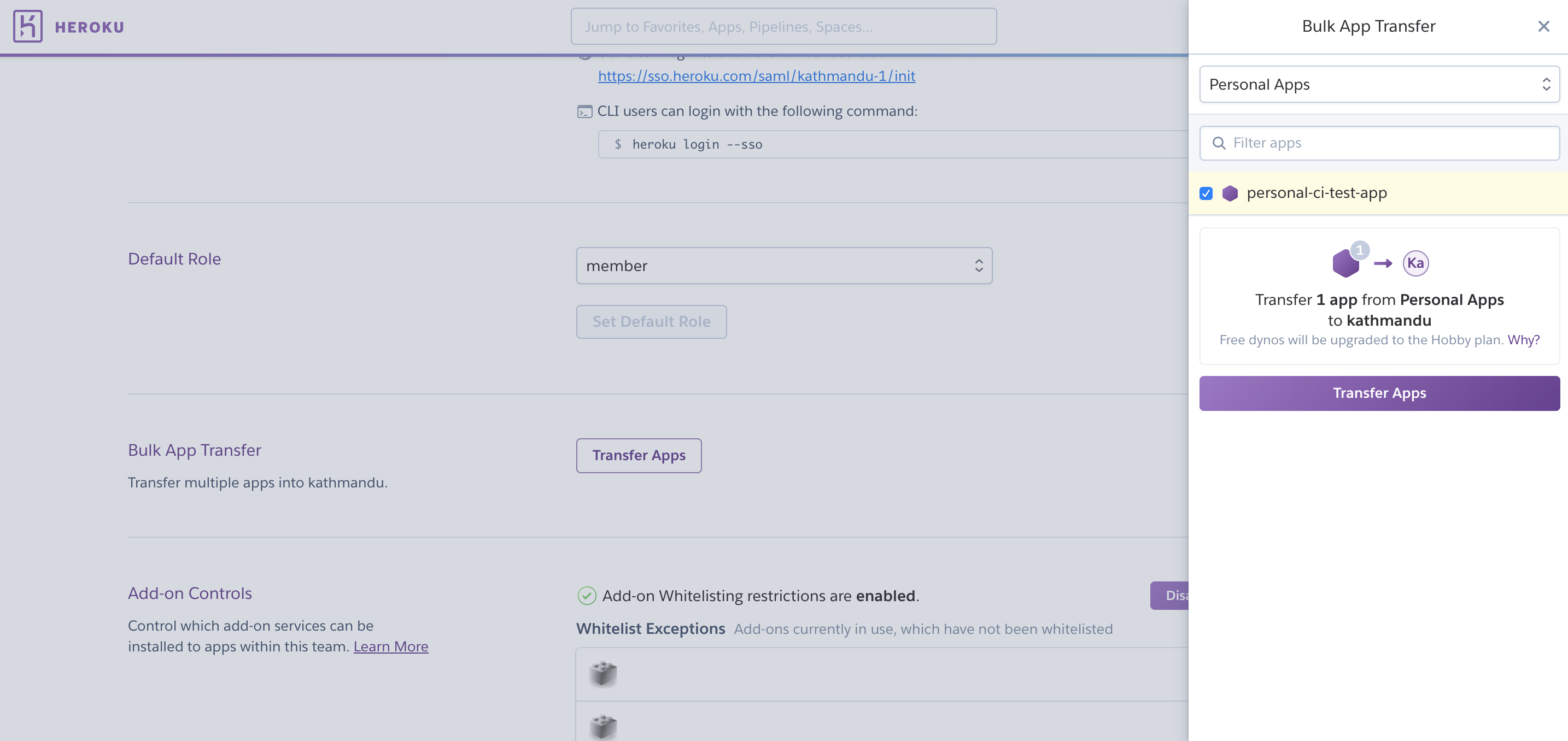
To transfer multiple apps to an Enterprise Team in the Dashboard:
- Select an Enterprise Team to receive the transferred apps.
- Select the
Settingstab. - Select the
Transfer Appsbutton in front ofBulk App Transfer. - Choose your apps, and then select Transfer to transfer them to the new Enterprise Team.
Remove Apps
Remove Enterprise Team apps by transferring them to a new owner or by deleting them. Admins can delete or transfer any app. Members must have the manage permission for an app to delete or transfer the app.
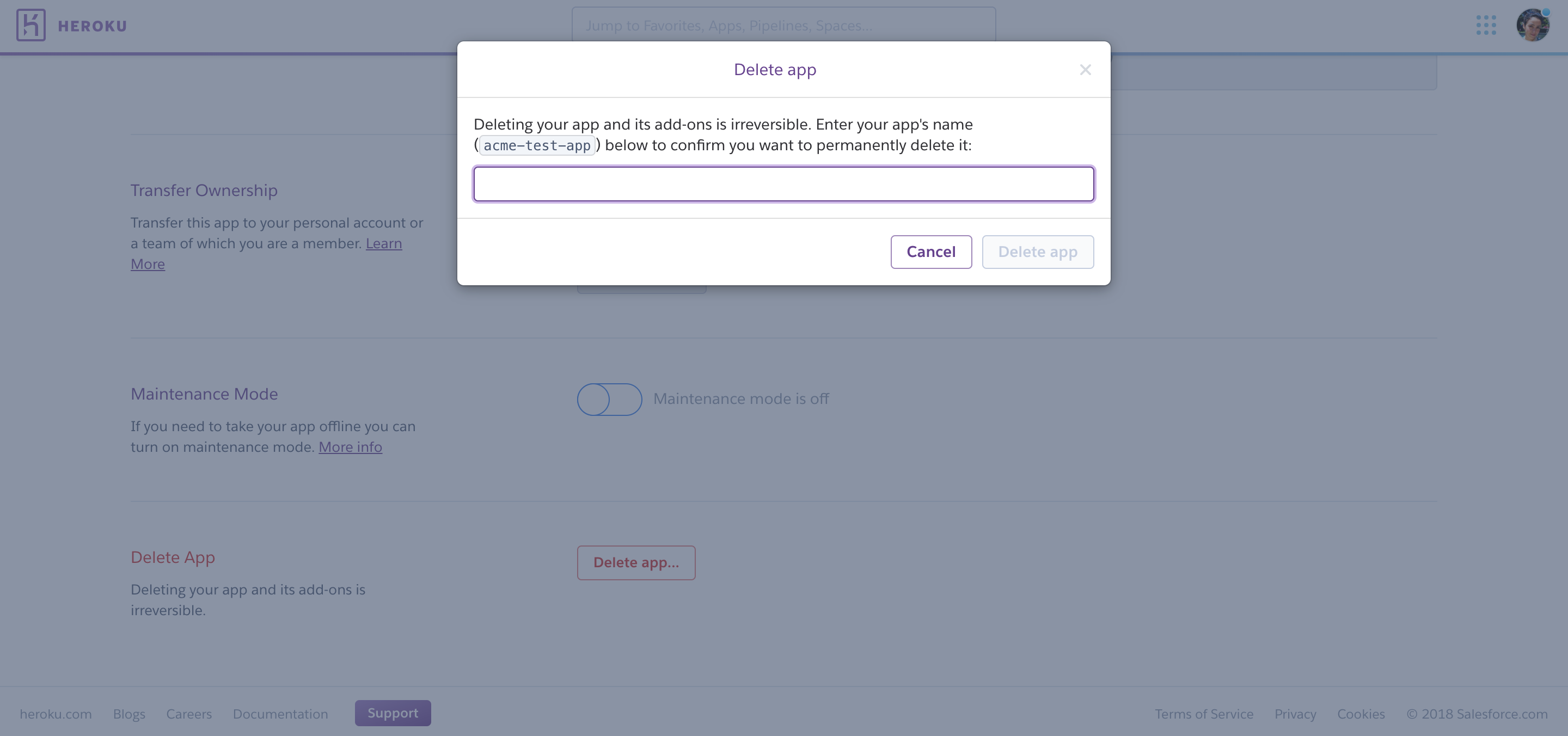
To delete an app:
- Click on the app in the Heroku Dashboard.
- Click
Settings. - Click
Delete app... - Type the name of the app and click
Delete appto confirm.
Limit Access to Apps via OAuth
Heroku admins can deny OAuth access to team-owned resources from all non-Heroku products and services. Turn off third-party OAuth access to the Heroku Platform API in the team’s Settings tab.
Spaces
This tab lists your Heroku Private Spaces. You can create a space by selecting the Create a Space button.
Each Heroku Private Space costs $1000 in Add-on Credits/month (pro-rated to the second).
You can also transfer a space to another Enterprise Team within the same Enterprise Account. The user making the transfer must be an “admin” in both Enterprise Teams or have “Manage” permissions it the company’s Enterprise Account. To transfer a space, navigate to its Settings tab, then find the Enterprise Team you want to move it to in the Space Ownership section.
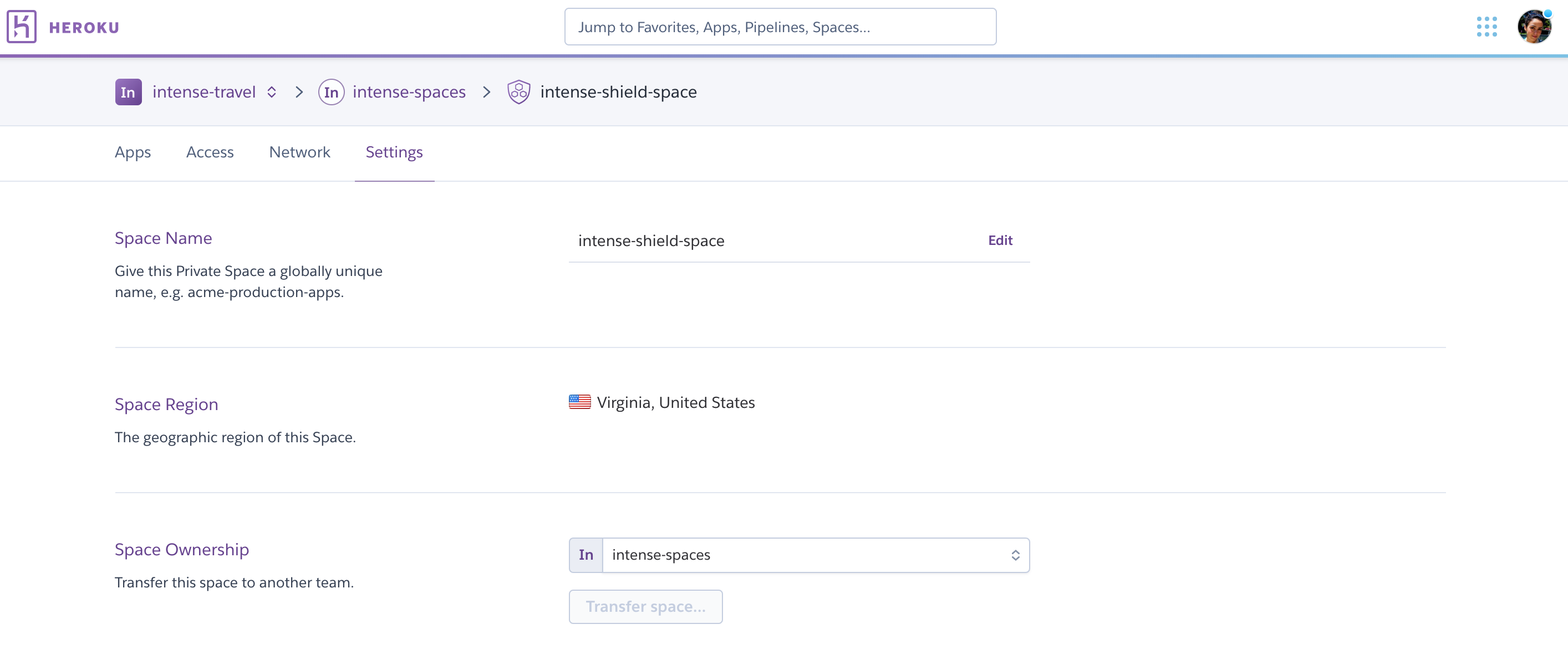
When transferring spaces, only apps that are inside the space move to the new Enterprise Team. If you have a pipeline that contains apps both inside the space and outside, only the apps inside the space move to the new Enterprise Team. The pipeline stays in the old Enterprise Team with the apps that aren’t inside that space.
Access
For information on the different roles users can have, see Heroku Team Roles and Allowed Actions.
Resources
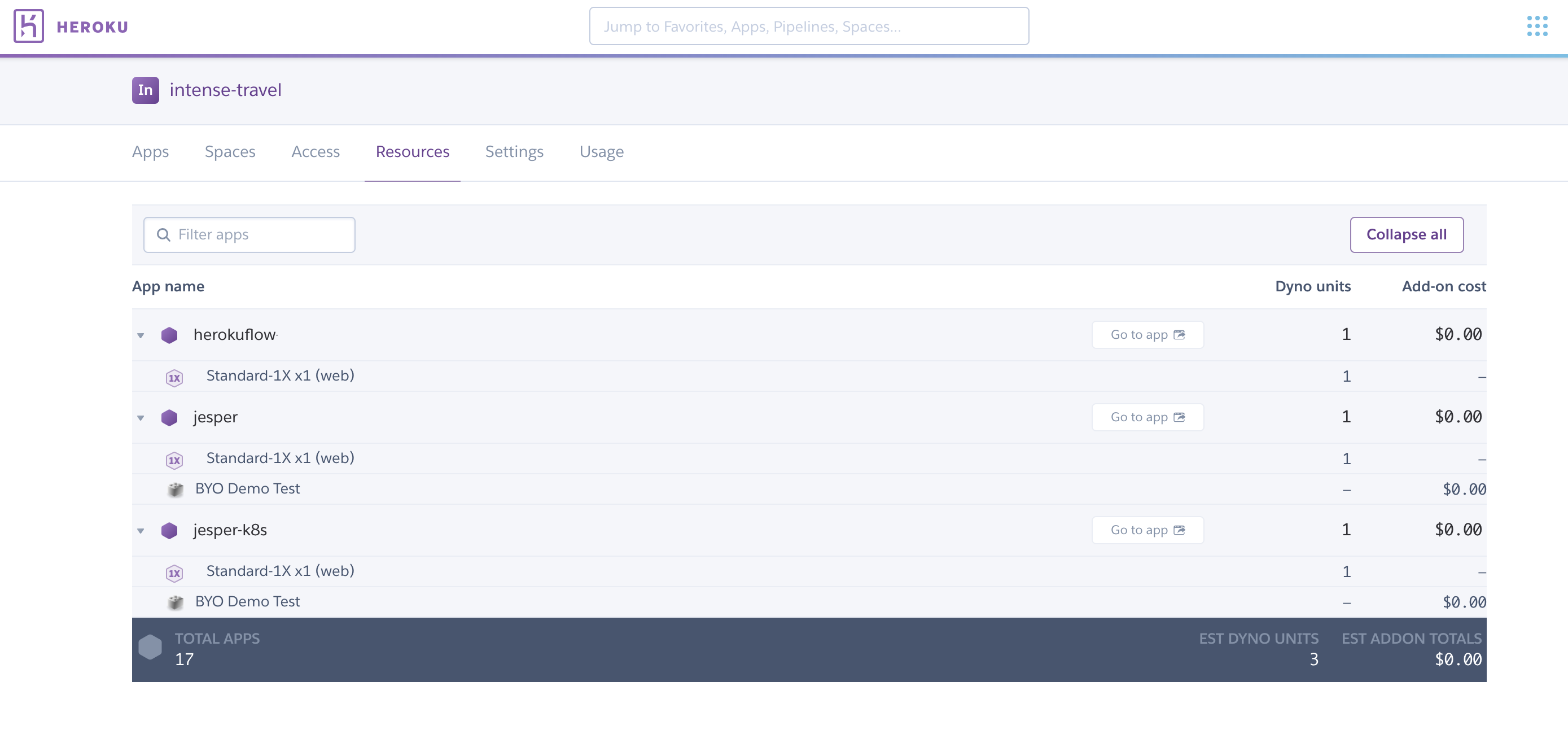
Lists all resources used by all applications within the Enterprise Team.
Settings
Use the Settings tab to:
- Rename your Enterprise Team
- Set up SSO
- Change the default from “member”. New users are assigned the new default permissions.
- Control which add-ons can be used with apps in the Enterprise Team
- Move multiple apps into your Enterprise Team using Bulk app transfer. Eco dynos migrated from a Personal to an Enterprise Team account are automatically upgraded to Standard-1X.
- Limit access to apps via OAuth
- Create a support ticket to have your Enterprise Team deleted
Transfer a Team To or From an Enterprise Account
If you have an existing Heroku Team that incurs charges to a payment card, you can transfer the team to your Enterprise account to consolidate billing. You can also request to migrate an Enterprise Team out of your Enterprise account. See Transfer Heroku Teams To and From Enterprise Accounts for more info.
Next Steps
Learn more about developing and managing Enterprise Teams: